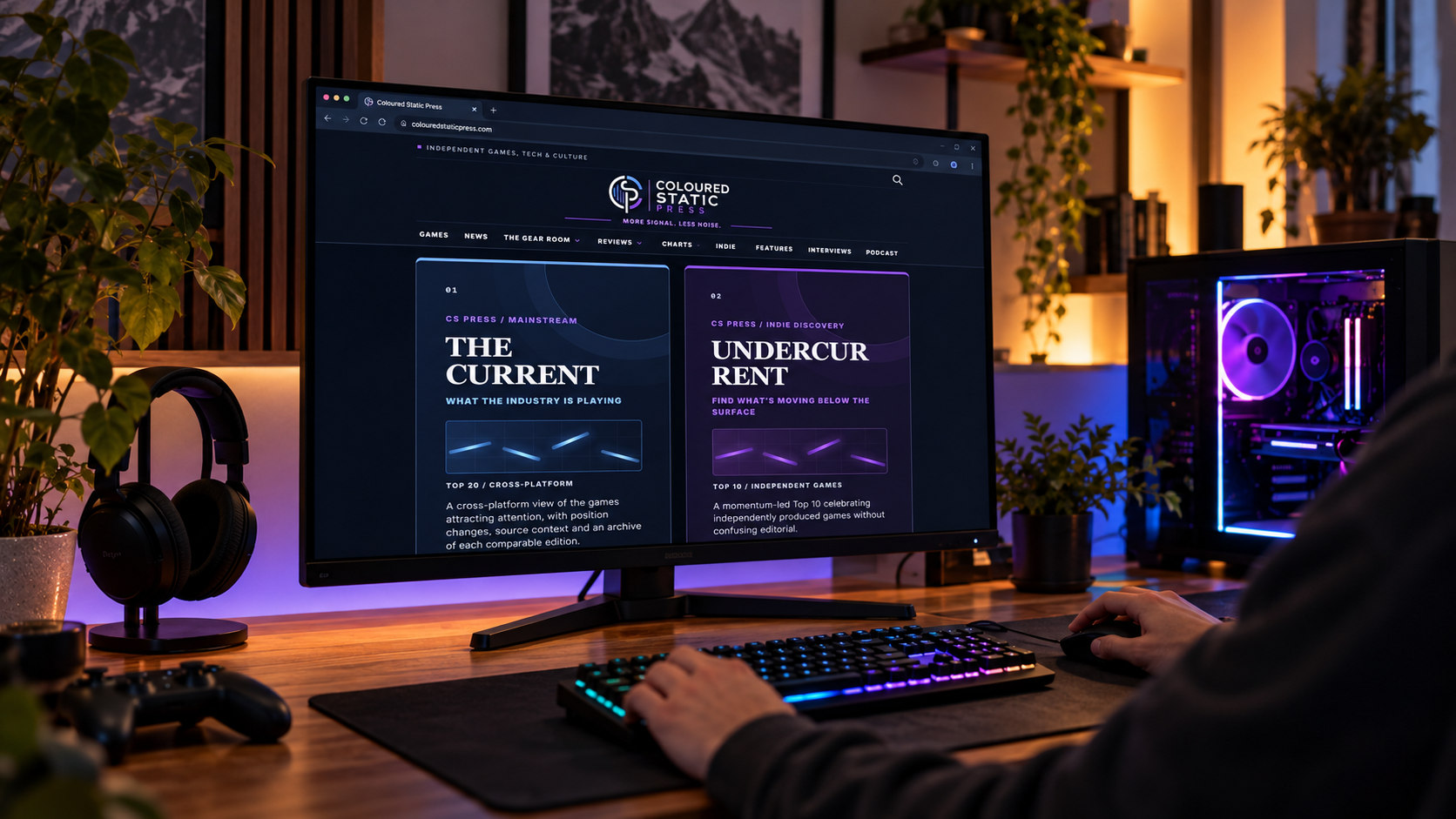
One 32-inch main display. Two 27-inch companions. A setup that’s useful for gaming, recording and the thousand other things that happen around a PC.
QHD

QHD
I spend plenty of time at my PC, and not all of it is spent playing games. There’s reviewing, writing, recording, keeping an eye on messages, and occasionally just having far too many windows open. That’s where a second display stops feeling like a luxury. Once you find a purpose for a third, it’s hard to go back.
My current setup uses a 32-inch curved KOORUI as the main gaming monitor, flanked by two 27-inch KOORUI displays. All three are 1440p. The main panel runs up to 170Hz, while the 27-inch companions support up to 180Hz. I’m not suggesting everyone needs this arrangement, but having lived with it, I do think there are lessons worth sharing if you’re considering a multi-monitor desk.
1. Buy the main screen first. Everything else comes after.
If gaming is the priority, the centre display is where your money should go. It’s the one you’ll be looking at for hours, so picture quality, motion handling, a refresh rate your PC can actually use, and the right screen size matter more than matching three monitors on a product page.
For me, that centre screen is a 32-inch curved 1440p KOORUI. I gave it 85/100 after using it because the image, responsiveness and HDR experience have impressed me for the price. It isn’t flawless, and I’d never tell you a good marketing sticker replaces an actual picture-quality test. But it suits the way I play.
My two 27-inch KOORUI monitors each scored 81/100 in their long-term review. They’re genuinely useful companions, but they don’t have to do the main monitor’s job. That’s the point of this layout.
2. Be clear about what the extra screens will actually do
Extra screens are great for keeping Discord, guides, music controls, browser tabs, recording software or reference material visible while you work or play. They’re less useful if you end up constantly turning your neck to read something you could have put in one sensible window.
I would start with the main screen directly in front of your normal sitting position and angle the secondaries towards you. Keep the things you check most often on the easiest secondary to see. Don’t assume perfectly symmetrical looks automatically mean comfortable use. Your chair, viewing distance and the size of your desk matter more.
And there’s a huge difference between running a game on one 1440p screen with two desktop displays active and rendering a game across all three monitors. The second option means vastly more pixels for your graphics card to process. Don’t buy extra displays assuming you’ll get panoramic gaming for free.
3. Check your connections before buying anything
Look at the actual outputs on your graphics card, then the inputs on each monitor. Don’t count an HDMI socket on the motherboard as another graphics-card output. Depending on your CPU and PC configuration, motherboard video outputs may not work at all.
DisplayPort is often the simplest route for a high-refresh PC monitor, but what matters is the resolution and refresh rate supported by that particular monitor input and cable. For example, the manufacturer documentation for my 32-inch KOORUI specifies 1440p up to 170Hz over DisplayPort, while HDMI has a lower maximum refresh rate for that model. That’s exactly the sort of detail to verify before assuming an advertised number is available from every socket.
The cables are only one part of it. Leave yourself enough GPU outputs, plan where the power leads will run, and don’t forget the desk depth you’ll need once three stands are in place. A monitor arm can help reclaim space, but confirm your exact model’s mounting support and weight before buying one.
4. Actually set the refresh rates in Windows
Once Windows sees all three displays, go to Settings → System → Display. Arrange the numbered screen icons to match their physical positions. Select Extend if you want separate working space rather than duplicating the same picture.
Then visit Advanced display, choose each monitor individually and check its resolution and refresh rate. A 170Hz monitor can happily sit at a lower setting if Windows hasn’t selected the one you expect. The same goes for the two secondary panels. Don’t assume that plugging everything in has optimised it.
If your equipment supports variable refresh rate, enable the right settings in both the monitor menu and graphics driver, then check game behaviour. VRR support and certification can vary by model, so don’t promise yourself compatibility just because the box mentions Adaptive Sync.
5. Don’t chase matching numbers at the expense of comfort
Three QHD displays give you a lot of space, but slightly different panels can have different colour temperatures, brightness and response behaviour even when the resolution matches. I would spend some time adjusting brightness and the colour settings so the setup feels consistent enough for everyday work, rather than hunting for a perfect calibration without the equipment to measure it.
Place the top edges at a height that doesn’t make you look up constantly. Check that the secondary screens don’t block speakers or drag the main display farther away than you’d like. Pay attention to reflections and nearby lighting. The small annoyances add up faster than benchmark numbers.
6. Spend money where it changes the experience
If I were putting a multi-monitor desk together from scratch, I’d prioritise a comfortable main display, a sensible desk layout, reliable cables and one genuinely useful extra screen. I’d add the third when I could explain exactly what I’d keep on it.
That approach is better than buying three expensive matching panels just because the desk setups on social media look tidy. If your main gaming screen is good, the secondary doesn’t need flagship HDR, extreme refresh rates or the same response-time claims. It needs to do its job without getting in the way.
My verdict on the setup
The 32-plus-27-plus-27 arrangement works brilliantly for the way I use my desk. The central screen gets the attention during games; the others keep everything else close at hand. It isn’t a cheap or compact arrangement and it won’t suit everyone, but it’s a surprisingly practical way of separating gaming from the rest of your PC life.
When the desk is finally arranged exactly how I want it, I’ll add original photographs of the complete setup. Until then, the illustration here shows the layout rather than pretending to be a photograph of my room.
If you’re still deciding what actually matters in a gaming display, start with our 1440p monitor buying guide. It explains refresh rates, HDR and VRR in plain English.
Editorial note: This feature reflects personally owned hardware and experience, not a controlled comparison of every monitor on the market. For Windows setup, see Microsoft’s multi-monitor guidance and refresh-rate instructions. Relevant shopping links inside our individual reviews are disclosed as paid links.