
THE GEAR ROOM / GEAR EXPLAINED / MONITOR CONNECTIONS
You’ve bought a 1440p gaming monitor, it promises 144Hz, 170Hz or 180Hz, and now comes the least exciting part of the upgrade: working out which cable lets you use the features you paid for. The answer is surprisingly practical. DisplayPort is often the simplest starting point for a dedicated gaming PC monitor, while HDMI can be every bit as suitable when both devices support the mode you want.
Neither connector makes a picture sharper by magic. The difference is whether the entire connection can transport the resolution, refresh rate, colour depth and features you’re requesting. That means checking four pieces of equipment, not buying whichever cable has the biggest number printed on its packaging.
The short answer: use the port that supports your target mode
- Desktop PC and high-refresh monitor: start with a direct DisplayPort connection if your graphics card and monitor support the full refresh rate through it.
- Console or television: HDMI is usually the intended connection. Check the specific console, TV and monitor specifications for supported refresh rates and VRR.
- 1440p at 144Hz, 165Hz, 170Hz or 180Hz: either connection can work, but maximum modes vary by the actual ports on each product.
- One of several monitors connected: use the outputs that your graphics card supports, and check bandwidth limitations if a dock, adapter or USB-C hub is involved.
The crucial distinction is supported video mode, not simply the shape of the plug. A monitor may advertise its maximum refresh rate via DisplayPort while listing a lower HDMI maximum. Another monitor may accept the same mode through both. Its manual or official specification sheet should settle that question before you spend anything.
What HDMI and DisplayPort actually change
HDMI: the familiar choice for consoles and TVs
HDMI is widely used by televisions, consoles, AV equipment and PC monitors. HDMI 2.1 introduced higher-bandwidth operation for compatible devices, alongside gaming-oriented features such as variable refresh rate in implementations that support them. Certified Ultra High Speed HDMI cables are designed for configurations up to 48Gbps.
The newer HDMI 2.2 specification introduces the Ultra96 cable class, supporting up to 96Gbps for compatible equipment. That is a real standards development, not evidence that your existing 1440p monitor needs a 96Gbps cable. The source, display and cable all have to support the relevant capabilities; buying a higher-rated cable cannot give an older monitor a faster input.
HDMI labels also deserve scrutiny. A device advertising an HDMI specification version does not necessarily implement every optional gaming feature or the maximum possible data rate. Look for the exact port capabilities, supported resolutions and refresh rates, and a clear VRR statement in the product’s documentation.
DisplayPort: designed around PC displays
DisplayPort is commonplace on dedicated graphics cards and higher-refresh PC monitors. VESA’s DisplayPort 2.1 work expands support for high-bandwidth links and compatibility with USB-C and USB4 workflows. Its certification programme includes DP40 and DP80 cables for appropriate link rates. Those are useful standards, but they are not a shopping requirement for every 1440p setup.
As with HDMI, the version number is only part of the story. A DisplayPort 2.1 label tells you less about a specific setup than the monitor’s supported mode table, the GPU output’s capability and whether the cable is appropriately rated. Some combinations also use Display Stream Compression (DSC), a visually lossless compression system supported in relevant DisplayPort implementations, to transport demanding modes.
1440p at 170Hz: why the refresh-rate number is not enough
Running a 2560 × 1440 display at 170Hz means delivering a fresh picture 170 times each second. But refresh rate isn’t the entire bandwidth calculation. Higher colour depth, HDR, different video timings and compression support also affect what a connection can carry. Two monitors with the same resolution and advertised refresh rate can therefore have different connection requirements.
If your display appears limited to 60Hz or 120Hz, that doesn’t automatically mean the cable is faulty. The graphics card, cable rating, monitor input, port configuration or a dock may be limiting the negotiated mode. Our accompanying Windows refresh-rate troubleshooting guide takes those checks in a sensible order.
How to choose a cable without overspending
- Check both ports first. Look up the exact monitor model and the GPU’s actual HDMI or DisplayPort output, not a generic description of the product range.
- Confirm the mode you want. For example: 2560 × 1440 at 170Hz with your preferred colour format, bit depth and VRR.
- Buy a properly certified cable when you need a replacement. HDMI Licensing Administrator explains the official cable labels and certification. VESA maintains certification programmes for suitable DisplayPort cables.
- Keep the connection straightforward. A direct, comfortably routed cable is the best starting point. Extension cables, unverified adapters, KVMs and docks add potential limits or failure points.
- Test before replacing more equipment. Select the resolution and refresh rate in Windows, confirm the monitor’s own information screen, and then check that VRR and HDR work as intended.
Do you need an expensive 8K cable for a 1440p monitor?
Usually, no. You need a cable and ports certified or specified to handle your chosen video mode, not the most expensive cable on the shelf. A higher maximum rating does not improve picture quality when a lower-rated connection already carries the correct digital signal reliably. An unsuitable or damaged cable, however, may prevent a supported mode from working or cause intermittent dropouts.
Similarly, be cautious of cable listings that promise to ‘unlock’ refresh rates without mentioning the capabilities of your hardware. A 170Hz panel with a 120Hz-limited input remains constrained by that input regardless of what the cable costs.
What about multiple monitors, VRR and HDR?
A multi-monitor desk introduces more variables. A graphics card can have several display outputs, but that does not make every adapter, docking station or USB-C port interchangeable. Some docks divide available connection bandwidth between displays. Start by connecting the demanding gaming display directly to the graphics card, then add other displays back one at a time if you are diagnosing a limitation.
Variable refresh rate (VRR) helps a compatible display adjust its timing to changing frame delivery. HDR concerns the display’s luminance and colour presentation. Neither feature is guaranteed just because a cable is advertised as ‘gaming’. They depend on support across the monitor, GPU, drivers and connection. A setup may offer its highest fixed refresh rate with a different colour-depth or HDR combination. Check the manufacturer’s mode table rather than assuming every feature can be enabled simultaneously.
A practical 1440p setup, not a laboratory benchmark
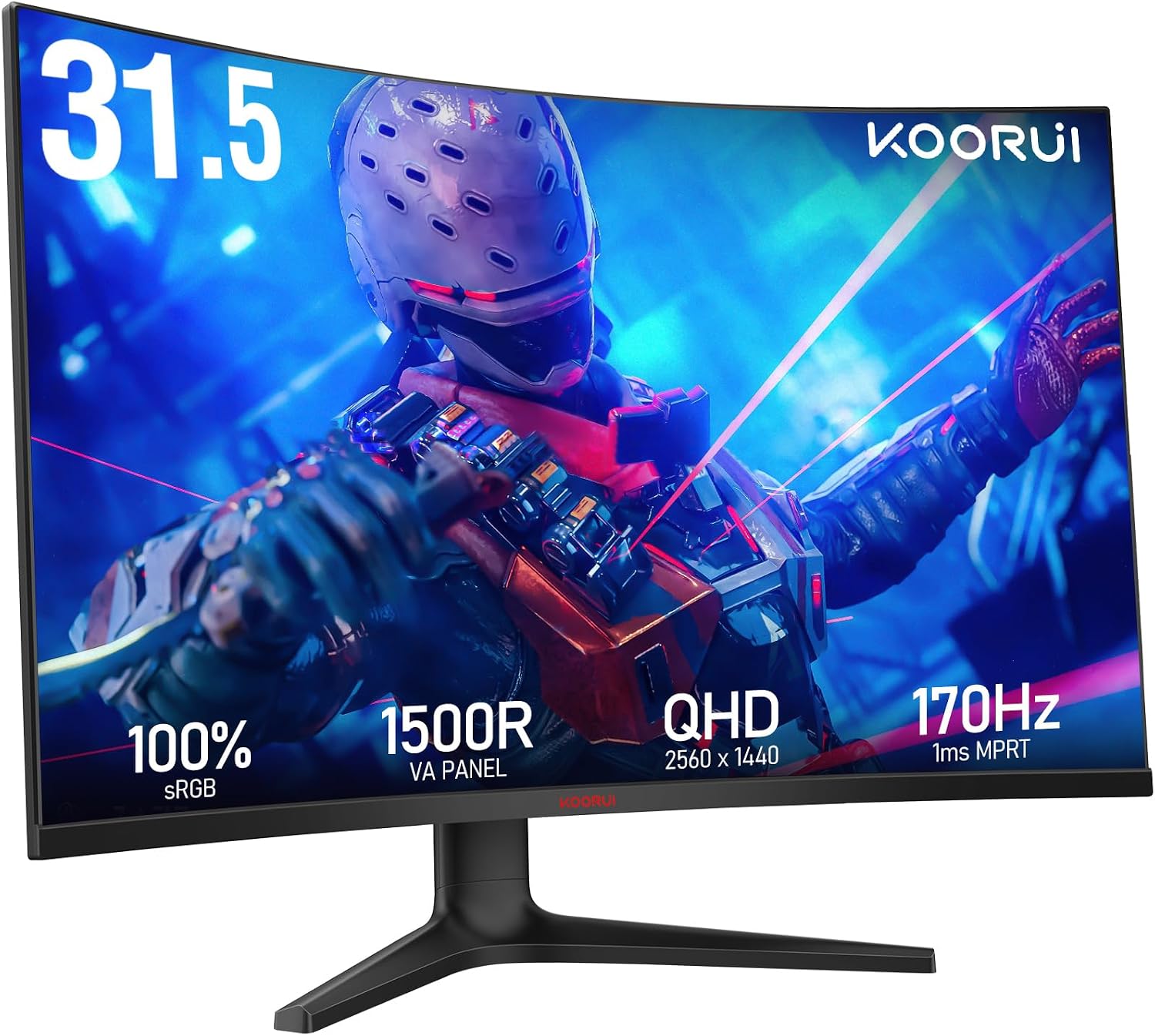
Our existing hardware desk includes long-term coverage of a 32-inch KOORUI 1440p 170Hz display, two 27-inch KOORUI companions and a three-monitor desk setup guide. Those articles document firsthand use of the screens and layout. This separate cable guide is a standards-based explainer; we are not claiming controlled HDMI-versus-DisplayPort measurements on those monitors.
The useful conclusion is straightforward: check the monitor’s actual input specification, choose the connector that delivers the full intended mode, and buy an appropriate reliable cable. For many desktop PC setups, that’s DisplayPort. For a console or an HDMI-equipped monitor with the right capabilities, HDMI is absolutely fine.
Primary sources and editorial disclosure
- HDMI Licensing Administrator: official cable classes and certification.
- HDMI Licensing Administrator: HDMI 2.2 overview and Ultra96 capability.
- VESA: DisplayPort 2.1 specification and DP40/DP80 certification.
- Microsoft Support: changing display refresh rate in Windows.
Reporting and disclosure: Compiled from primary standards-body and platform documentation, checked 18 October 2026. Specifications are illustrative; an individual monitor, GPU and cable combination must be verified separately. This is a technical buying guide, not a hands-on cable comparison or paid recommendation. Featured image is an official KOORUI product photograph used for monitor illustration.